
How to create virtual desktops with Windows 11 – The Verge
Filed under:
Make yourself some new workspaces
Virtual desktops aren’t new to Windows. In Windows 10, it was a simple matter to create a separate desktop so that, for example, you could have one desktop for one project and a second for another, or one for your work and a second for your personal apps.
However, in Windows 11, there has been an upgrade. Now, you can also have a different wallpaper for each desktop, making it easier to distinguish one from another (and offering you a different mood, depending on what you’re using it for). And there are a number of other features that make the use of virtual desktops easy and efficient. Note that some of these were actually introduced in Windows 10, but together with the new features of Windows 11, they make a handy toolbox.
To create a new virtual desktop:
You can also use key combination Win+Ctrl+D; in that case, you’ll immediately find yourself in your new desktop.
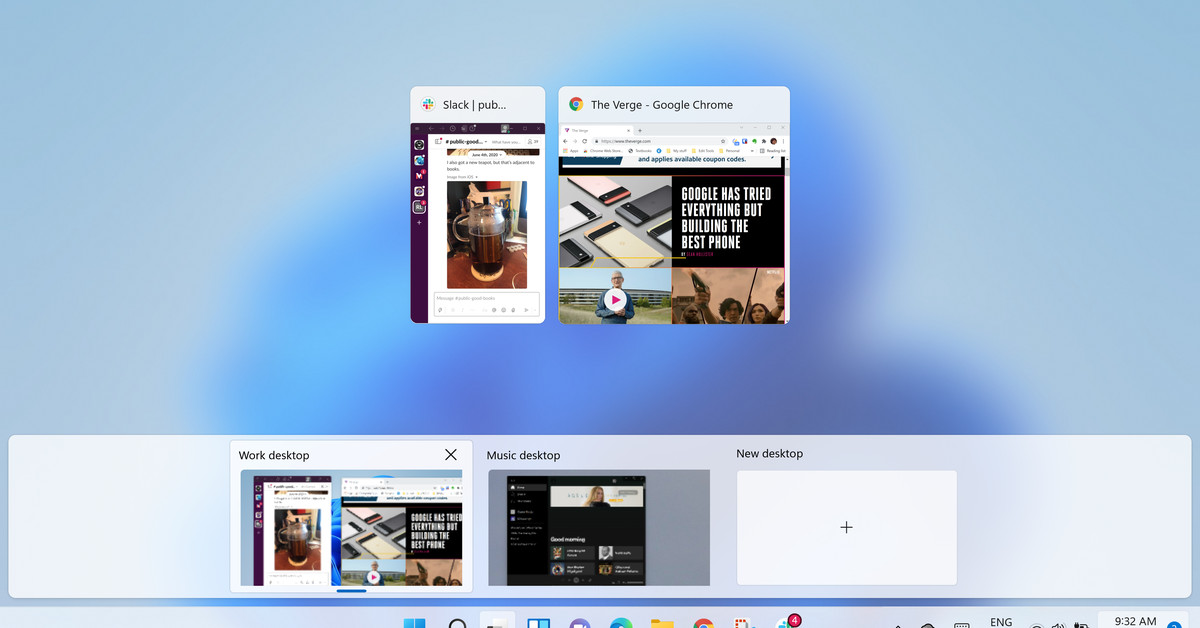
You can now place different apps in your separate desktops. Move from one desktop to the other by clicking the “Task view” icon. (You can also move around by using the familiar Alt-Tab key combination, which will take you to all the apps in one desktop and then to the apps in the next.)
To remove a desktop:
With Windows 11, you can now personalize your desktops, making it easier to dedicate each one to a separate function. There are several ways to do this.
You can have a different background for each virtual desktop. It’s quite simple:
This will bring you to the Personalization > Background page, where you can choose either an image for your background, a solid color, or arrange for a slideshow. You can then browse your photos for your choice of image(s) to use and decide the type of fit you want for your image (for example, you can tile or stretch image).
Your desktops will be automatically assigned the rather boring titles of “Desktop 1,” “Desktop 2,” etc. You can change that easily by giving each desktop a name.
You may want to change the order of the desktops in order to make it easier to remember which to use when. This is also very simple.
If you are already using an app on one desktop and open it in another, you will be using a different version of that app — for example, you can use Chrome to look at Twitter on one desktop and to do some work research on another. (Be aware that some apps may not work this way yet — for example, when I tried to open Notion in a second desktop, my computer jumped to the desktop where it was already open.)
While this is handy, you may want to run the same app with the same data in both — or all — of your desktops. (Note: this is not new to Windows 11, but it’s good to know.) To do this:
Subscribe to get the best Verge-approved tech deals of the week.
Please confirm your subscription to Verge Deals via the verification email we just sent you.
