
How to change the Windows 11 display language – Ghacks Technology News
Microsoft’s Windows 11 operating system supports dozens of interface languages. The operating system comes with a specific interface language installed, but users may switch to another language using built-in options.
You may have several reasons for wanting to change the Windows interface language. Maybe you bought a Windows PC on the last trip abroad or over the Internet, and it comes in a language that you don’t favor.
The instructions are in English, but should be easy enough to follow in most languages. It may require a bit of trial and error though depending on the language. If you bought a Japanese or Chinese PC, and don’t speak the languages, you will have a harder time than figuring it out on a French PC if you speak Spanish.
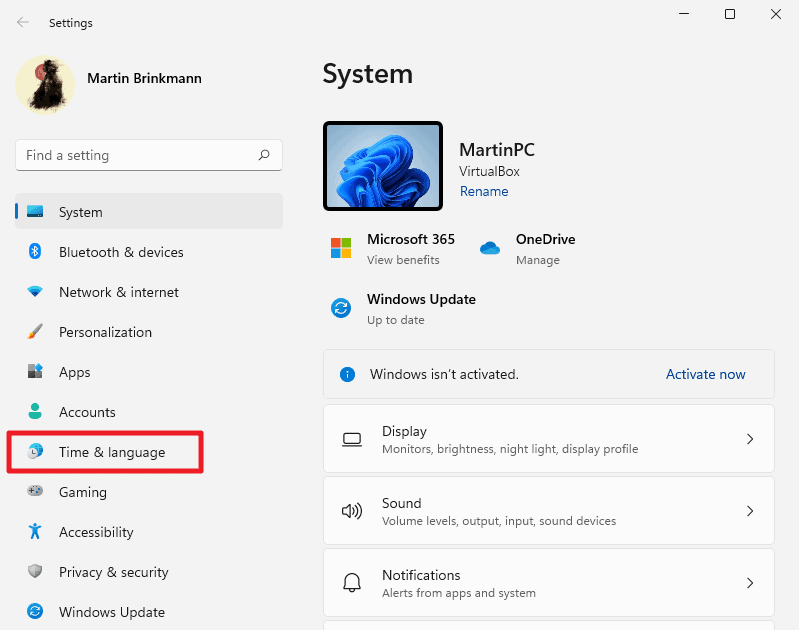
Begin by opening the Settings application. You may use the keyboard shortcut Windows-I for that, or select Start and then Settings from the Start menu.
Select Time & language from the sidebar on the left.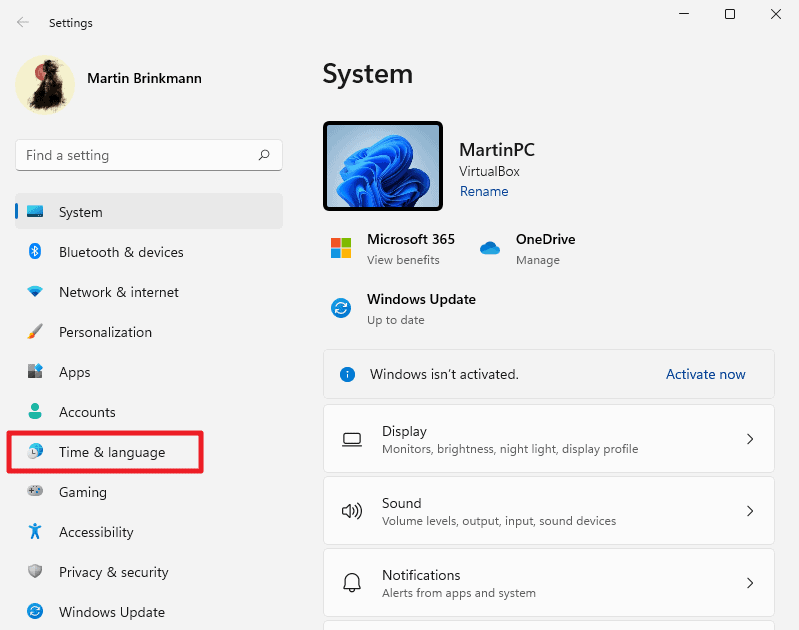
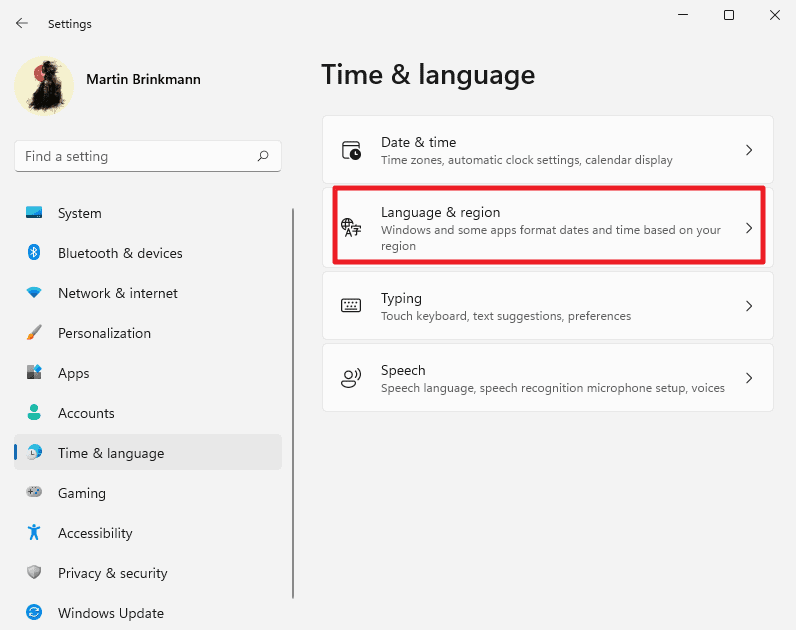
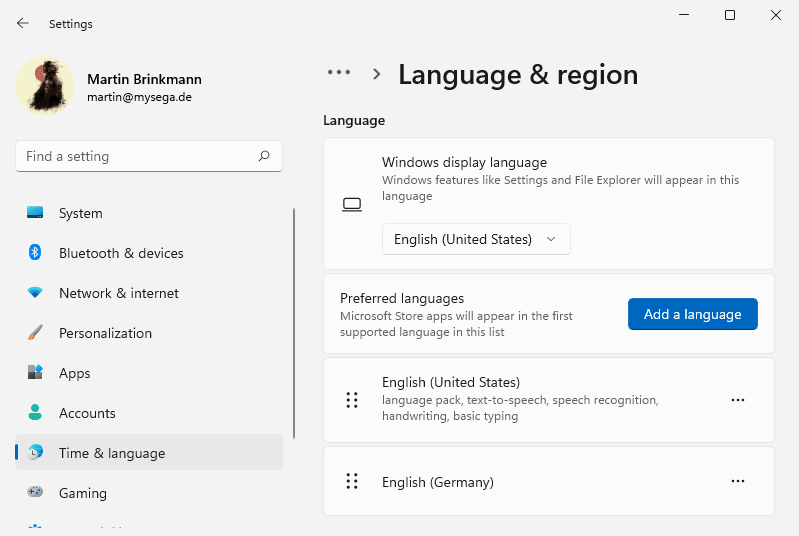
If the language is listed there, activate the three-dots menu to the right of it and select the “Language Options” context menu entry.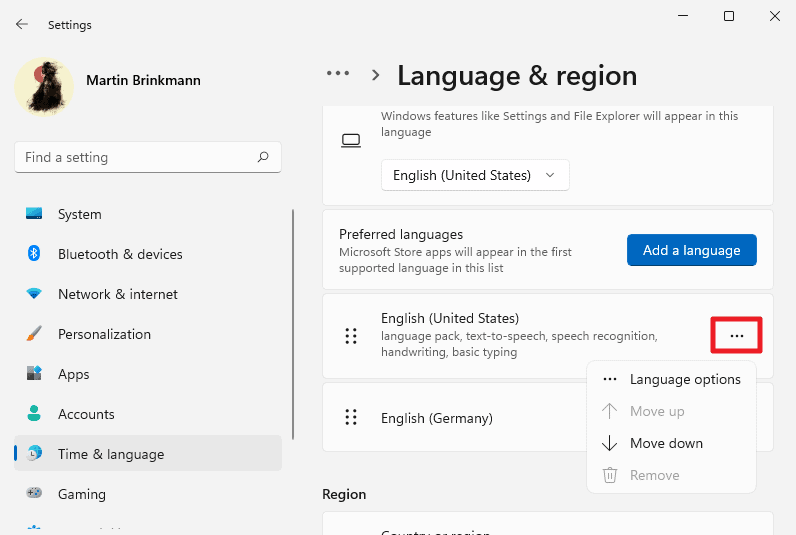
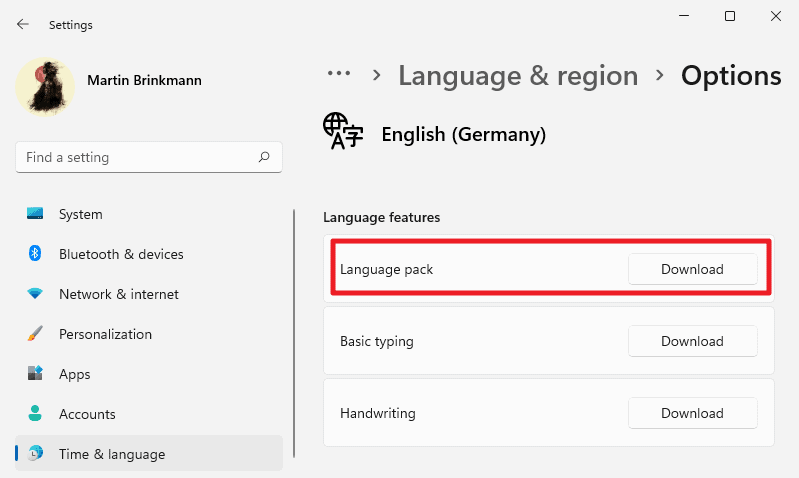
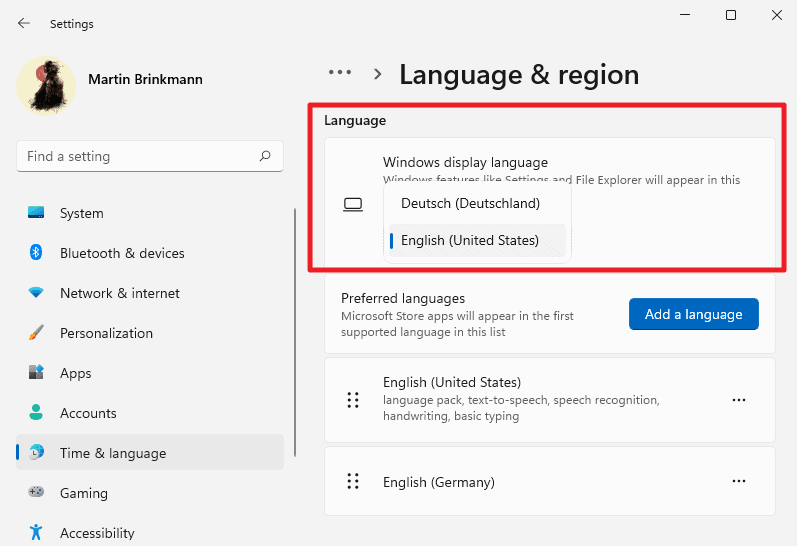
Select the “add a language” button to get started on the page.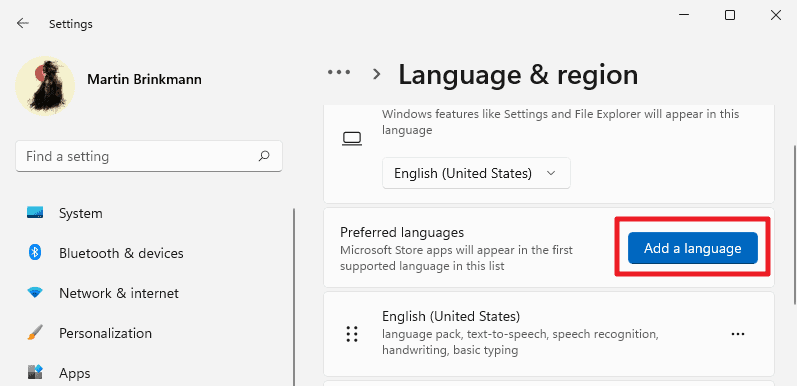
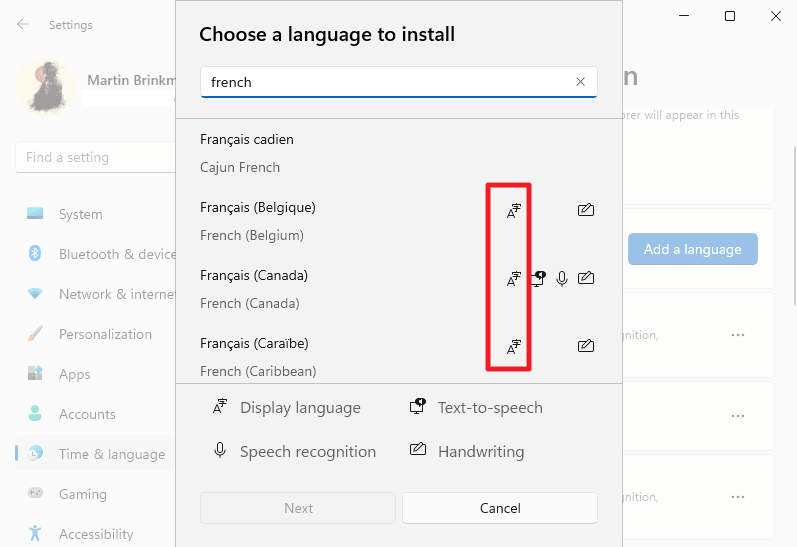
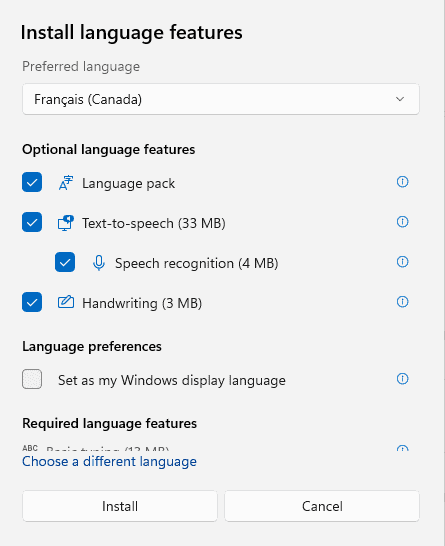
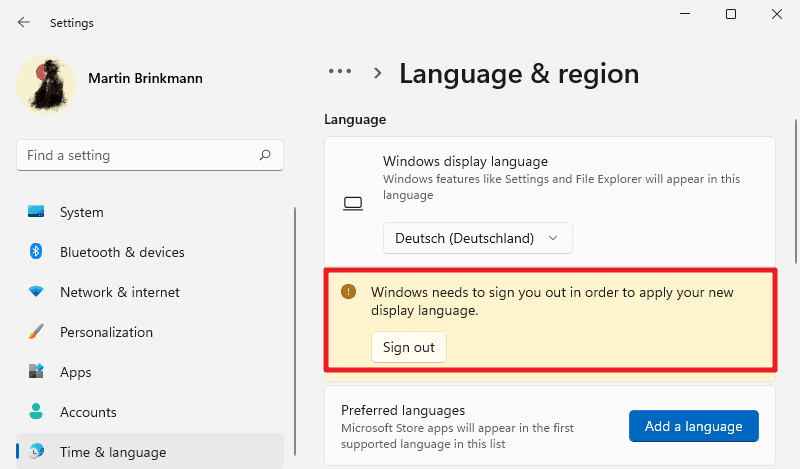
Windows 11 will use the new interface language throughout the operating system starting with the next sign-in.
There are no comments on this post yet, be the first one to share your thoughts!
Please click on the following link to open the newsletter signup page: Ghacks Newsletter Sign up
Ghacks is a technology news blog that was founded in 2005 by Martin Brinkmann. It has since then become one of the most popular tech news sites on the Internet with five authors and regular contributions from freelance writers.
