
How to Add a Printer in Windows 11 or 10 – Tom's Hardware
Tom’s Hardware is supported by its audience. When you purchase through links on our site, we may earn an affiliate commission. Learn more
By
Bridge the gap between your PC and your printer
Anyone who’s had to set up a printer before knows it can be an infuriating process. There’s a reason why the printer-smashing scene in “Office Space” still resonates with so many people even though that movie came out in 1999—it doesn’t feel like the experience has improved much in the intervening decades. Microsoft has done what it can to make adding a printer as straightforward as possible in Windows 11, though, so at least we have that going for us.
This guide won’t cover every aspect of setting up a printer. The category is simply too broad in terms of available features, underlying technologies, and manufacturer-specific quirks to go into that much detail. Instead we’re going to explain how to add a printer to Windows 11 after it’s already been configured. We’ll still have to generalize somewhat because the process can vary from device to device, but the primary aspects of the process should be pretty similar.
Here’s the part that feels like magic: Windows 11 can handle printers connected via USB or Ethernet like a champ. This is more about confirming that the printer’s been added than anything.
1. Connect your printer to your PC. The available physical connections will vary by printer. We used an HP DeskJet 3630 All-in-One for our tests and it only supports a USB 2.0 Type-B connection on the printer side and a USB 2.0 Type-A on the PC side. Other printers will vary, so make sure you have the appropriate cable and corresponding port on your system before you commit to relying on a physical connection between the devices.
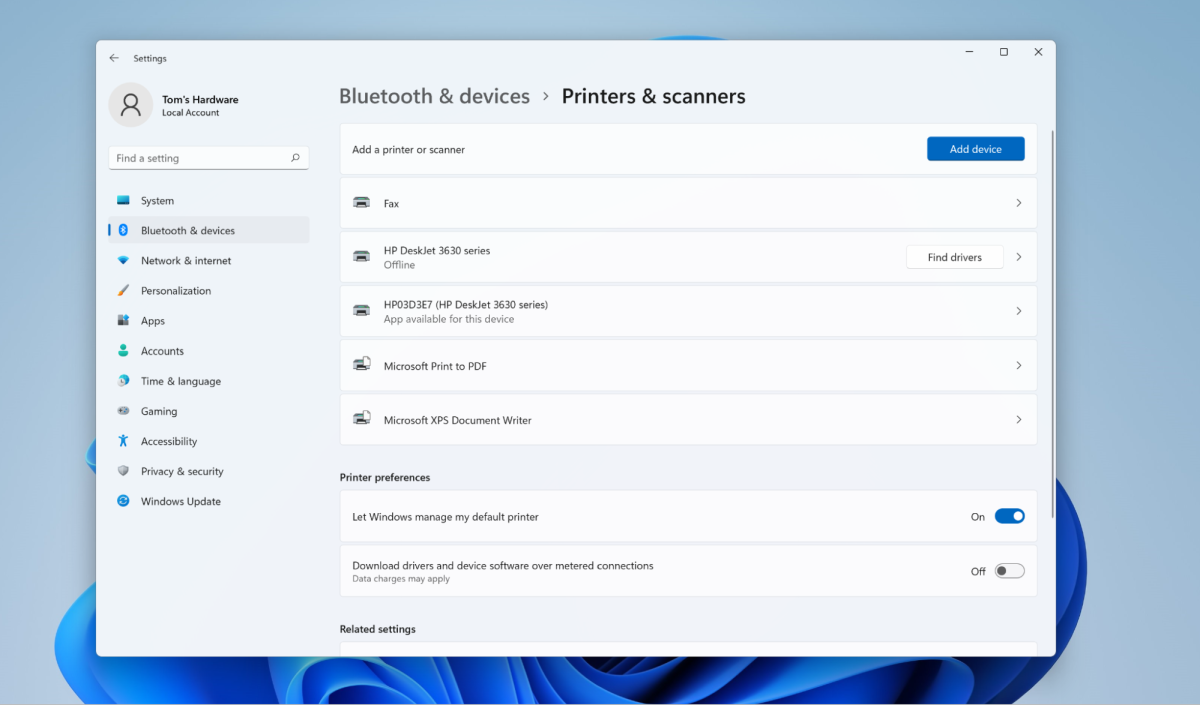
2. Open the ‘Printers & scanners’ page in Settings. The quickest way to do this is to open the Start menu, search for “Printers” and select “Printers & scanners” from the results. You can also open the Settings app, select “Bluetooth & devices” from the sidebar, and then click “Printers & scanners” from the list of options. Either works. 

Who wants a cable running from their printer to their PC? It’s a lot more convenient to have a wireless connection. (At least when the network itself is working properly… if not a wired connection is best.) Just note that both your printer and PC will need to support compatible versions of Bluetooth or Wi-Fi for this to work; setting all of that up is outside the scope of this guide. We’re going to focus on Wi-Fi, but the steps are similar for Bluetooth-capable printers.
1. (Wi-FI) Make sure your devices are on the same network. There’s nothing quite like troubleshooting printer errors only to discover the only problem was that the printer was connected to the “Tom’s Hardware Rules” network and the PC was connected to the “Tom’s Hardware Rocks” network. It’s much easier to check that first. 


5. Confirm your printer has been added. It should now appear in the list of devices on the “Printers & scanners” page in Settings. Our particular model uses different names for printing via wired or wireless connections so it’s easy to distinguish between the two. 
Not all printers have to be connected to an existing Wi-Fi network to enable wireless printing via the protocol. Many also support Wi-Fi Direct, which enables peer-to-peer connections between devices, and this option can be useful if you don’t want to have a printer available to everyone on a network but don’t feel like configuring it to prevent that kind of accessibility.
1. Enable Wi-Fi Direct pairing on your printer. Again, this is the kind of thing that varies from manufacturer to manufacturer and model to model, so you’ll have to refer to your user manual. But this is often a distinct option (and button) from general Wi-Fi access.
2. Click ‘Add device’ from the ‘Printers & scanners’ page in Settings. This step is the same as when we connected via an existing Wi-Fi network, but we’re looking for something new. 


We tried this process multiple times after removing the non-direct Wi-Fi-connected iteration of our printer. The first time we were greeted by a notification that Windows was installing necessary files, and it appeared the installation was successful, but DIRECT-E7-HP DeskJet 3630 Series wasn’t listed. Its non-direct counterpart was. Here are those screenshots:

More Windows 11 Tutorials:
Get instant access to breaking news, in-depth reviews and helpful tips.
Thank you for signing up to Tom’s Hardware. You will receive a verification email shortly.
There was a problem. Please refresh the page and try again.
Tom’s Hardware is part of Future US Inc, an international media group and leading digital publisher. Visit our corporate site.
© Future US, Inc. 11 West 42nd Street, 15th Floor, New York, NY 10036.

