
Explained: How To Reset Windows 11 Using Settings? – Fossbytes
Guides
Resetting Windows is easier than ever.
Windows 11 Insider builds have been out for a while now and have brought new features to the masses. If you are already running any Insider Preview build on your PC and facing issues, you might want to take a fresh start. This guide will help you reset Windows 11.
If you haven’t opted for the Windows 11 Insider program yet, make sure to do these things before proceeding with the same. A need for resetting Windows 11 can arise at any time as these are beta builds and we cannot expect full-fledged stability. Let’s see how to do the same.
Microsoft added a new way to reset Windows back in 2020, known as Cloud Download. Basically, it downloads a fresh copy of Windows and installs it. This method is useful if you are facing a critical issue.
1. Click on the Start Menu icon and open the Settings app or press Ctrl+I.
2. Navigate to Windows Update > Advanced Options. Click on the Recovery button.
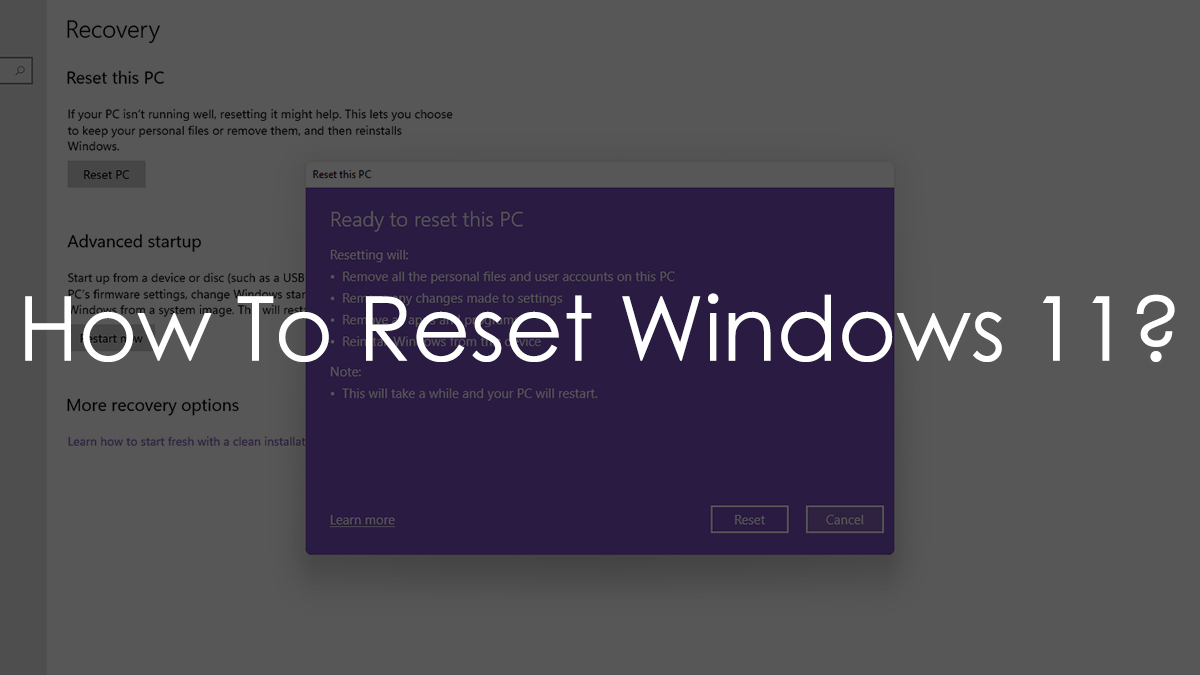
3. In the Recovery section, you will see an option labeled as Reset this PC. Click on the Reset PC button.
4. You will be given a choice to keep your files on the PC or erase everything. Choose your preferred option to continue.
5. Then, choose from Cloud download, which downloads a fresh copy of Windows and installs it, or Local reinstall that resets the PC locally.
6. Finally, a screen will appear showing what will happen during the reset and a final prompt. Click on Reset to begin the process.
That’s it. Now, Windows will begin the reset process and it might take around 45 mins to complete depending on your hardware and what download option you chose.
This is how you can Reset Windows 11 with ease. Do you prefer resetting the PC or doing a clean install? Let us know in the comments below.
Also, make sure to check our detailed coverage on Windows 11.
Fossbytes Media Pvt Ltd © 2021
Fossbytes Media Pvt Ltd © 2021
