
Windows 11 update: All new features, Release date – WinCentral
Windows 11 update aka Sun Valley update is the next major update for Windows 10 targeted at October 2021. In fact this release will be officially called Windows 11 October 2021 update or Windows 11 version 21H2. On this page, we have collated all the probable changes and new features Windows 11 update aka Sun Valley update may bring.
Just keep in mind that not all of the features and changes listed on this page may make it to the final release build of Windows 11 update aka Sun Valley update. You can bookmark this page to refer back to see the collated changelog for Windows 11 update aka Sun Valley update. We will keep it updated with new features as and when they are leaked or released.
Windows 11 update aka Sun Valley update has RTMed in July 2021. This will be followed by a public release on October 05, 2021, as confirmed by Microsoft officially now. New Windows 10 PC users will get the update in October 2021 if they seek it but most of other existing Windows 10 PCs will get it starting 2022 if they meet the minimum requirements.
You can click here to download the official Windows 11 ISO images if you want to install it on your Windows 10 PCs. Just keep in mind that Microsoft recommends installing Windows 11 on only those PCs that meet the minimum requirements.
32 Windows 11 wallpapers in high-quality. Yes, these 32 wallpapers include touch keyboard theme wallpapers too.
You can click here to go to the folder (Via) and download all of them and get a feeling of Windows 11 on your Windows 10 machine.

This collated Windows 11 full and massive changelog is divided in three sections:
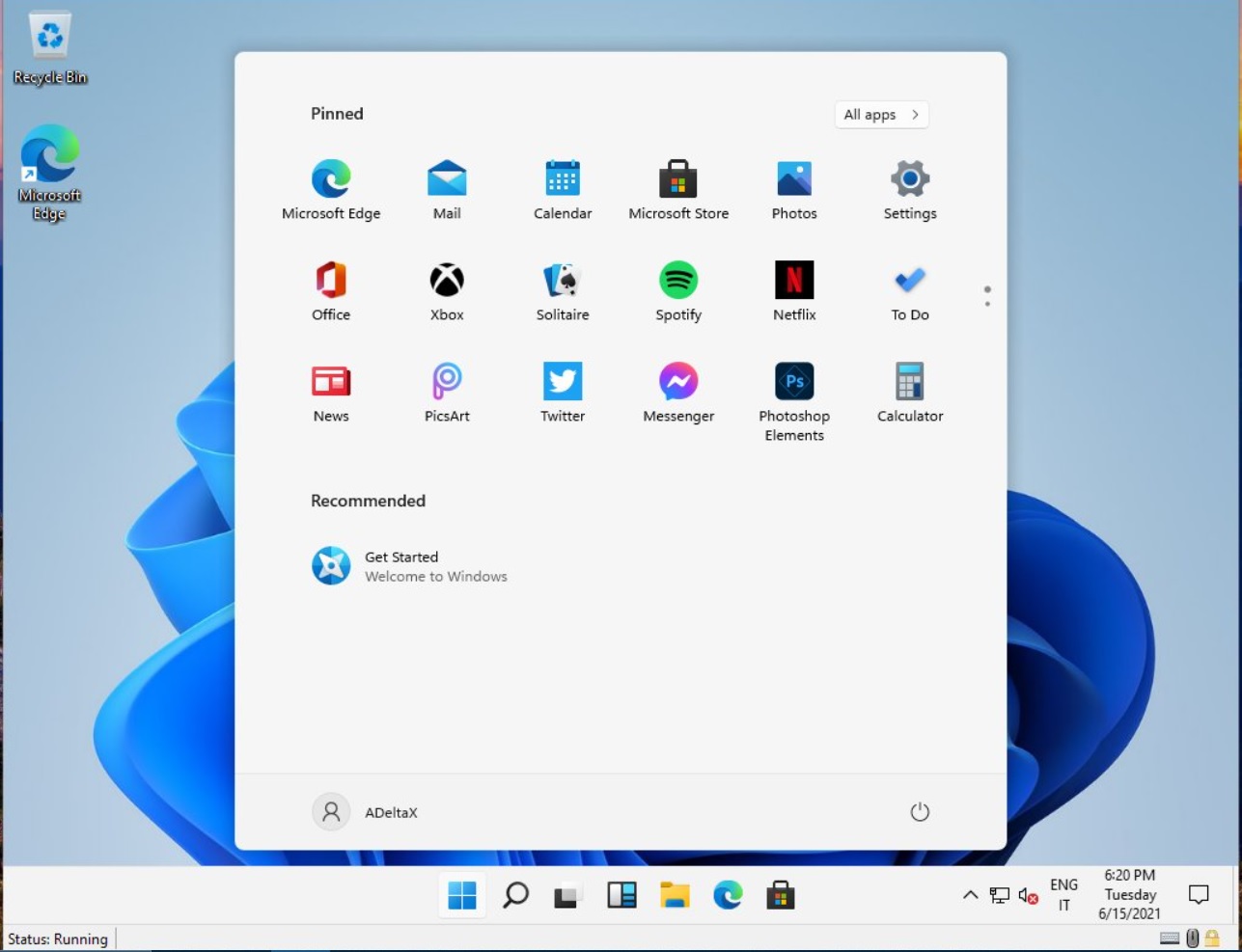
Windows 11 is the marriage of Windows 10X UI with Windows 10. The default start screen is very similar to the Windows 10X start screen (Check the feature image above). Here is your first look at Windows 11 start screen and other updated UI elements like context sensitive menus. Rounded corners are here with Windows 11. If you don’t like the centered start screen UI, you can move it to left to get the traditional Windows 10 start screen.
These screenshots reveal how the Windows 11 Action Center and Settings UI have changed. Both look quite pretty in the new Windows 11 avatar.
Even the setup looks very similar to Windows 10X setup experience. Check the screenshots below providing first look at the Windows 11 OOBE experience.
Windows 11 packs a revamped File explorer with a modern and cleaner look with new UI design elements. Once you start playing with the new File explorer you will notice visual changes like,
Windows 11 seems to have snapped a cool new way to multitask with many Windows. It is easy to snap the Windows with options popping up with just a hover over the maximize button. Check the screenshot below that shows the new multitasking method of Windows 11.
Windows 11 brings Snap layouts and Snap groups with two columns for easier multitasking. Now, in a document Microsoft has explained that the Snap layout on larger displays (larger than 24 inches and at 1920 effective pixels) will have Snap layouts with 3 columns of zones. The displays smaller than 24 inches will have Snap layouts with 2 columns of zones. The Snap Layouts can be invoked either by hovering on the maximize button or by doing Win + Z.
Microsoft has now provided first look at one more upcoming Windows 11 feature known as “Focus sessions”. The new feature termed as “game-changer” by Panos Panay comes with Spotify integration, it seems.
Panos Panay today posted another tweet that has a short video demoing the Windows 11 Focus sessions feature. It seems that Focus sessions will provide user a time-window to focus and accomplish a task on-hand without interruptions. It will options to have or skip any breaks. With Spotify integration one may be able to enjoy any desired music that may help in boosting productivity.
Check the short first look video below.
Another first look from the team…#FocusSessions on #Windows11 coming soon. This has been a game-changer for me, especially with @Spotify integration #Productivity #Creativity #WindowsInsiders pic.twitter.com/HfJh4niDiS
— Panos Panay (@panos_panay) August 5, 2021
Another first look from the team…#FocusSessions on #Windows11 coming soon. This has been a game-changer for me, especially with @Spotify integration #Productivity #Creativity #WindowsInsiders pic.twitter.com/HfJh4niDiS
Windows 11 supports animated lock-screen background on PCs that have accelerometer. The setting to enable this feature is still work in development as the toggle appears with a blank space in place of description. This toggle is only available for PCs with accelerometer. So, if your PC supports the feature you can go to Settings–>Personalization–>Lock screen and enable the toggle without any text.
Animated lock screen background (Windows 11)
cc @thebookisclosed pic.twitter.com/BQMmKk8yMy— ADeltaX (@ADeltaXForce) July 4, 2021
Animated lock screen background (Windows 11)
cc @thebookisclosed pic.twitter.com/BQMmKk8yMy
The Archive apps feature can be toggled on and off. When enabled it will archive apps not used frequently to save storage space and internet bandwidth. Though files and other data for archived apps will be saved and not deleted. If you happen to use an archived app by chance in future, it will connect to the internet to restore app’s full version.
You can change which icons including Computer, Recycle Bin, Network, User’s Files and Control Panel will appear on the Desktop of your Windows 11 PC. Head over to the personalization settings to make changes.
You can also decide which folders appear next to the power button on Start. Options include Settings, File explorer and others.

Windows 11 brings beautiful and quite functional Battery usage graphics.
Coming to the Aero Shake toggle here is what the feature does. If you toggle the Aero shake on and grab a Windows’s title bar and shake it, it will minimize all other windows.
Microsoft will offer tips, tools and services based on how you intend to use your PC. You can choose the options in Personalization.
If you open clipboard history by using (WIN + V) and click the … button next to any text-based entry in your clipboard history – you will now see a “Paste as plain text” option alongside pin and delete. When you use this action in clipboard history, it pastes the text content of the clipboard without its original formatting (font, color, size etc.), allowing it to match the formatting of the destination document.
Windows 11 and Windows 10 both will get a new Microsoft store experience. Not only the store has a revamped look, but Microsoft has also partnered with Amazon to bring Android apps and games to Windows. Here are the major store changes in the words of Microsoft.
We want the Microsoft Store to be the place to get all your favorite apps – including the ones you haven’t heard about…yet! We are introducing Stories, rich editorial content to keep you informed about the best apps and inspire you to achieve more with your device.
We also announced a partnership with Amazon to bring their catalog of Android apps and games to Windows. Windows customers will be able to discover Android apps in the Microsoft Store, and acquire them through the Amazon Appstore.
With the new pop-up store, we are making it easy to install apps from the browser; when you click a Microsoft Store download badge on a web page, the Microsoft Store will pop up to manage the install – without pulling you away from what you were doing.
Short videos shared on Twitter demo the new Windows 11 touch gestures and Windows resizing animations. Touch gestures look nice but may help more refinement. The Windows resizing animations look really neat, however.
Windows 11 gestures pic.twitter.com/ndtOKgeNnE
— ADeltaX (@ADeltaXForce) June 15, 2021
Windows 11 gestures pic.twitter.com/ndtOKgeNnE
Nice animations when resizing windows. pic.twitter.com/1HUXtaoP9X
— NTDEV (@NTDEV_) June 15, 2021
Nice animations when resizing windows. pic.twitter.com/1HUXtaoP9X
There will be a button called Meet & Chat in the taskbar (just like Search or Dashboard) that will launch Microsoft Teams it seems. There is no such button so far in the leaked build but code digging reveals that Microsoft may enable this Meet & Chat button in future builds.
Windows 11 supports a setting for “Wake on Touch” similar to the Windows Mobile 10 feature. This will allow the PC running Windows 11 to wake up only after touching the screen.
Windows 11 brings two long-awaited multi-monitor improvements. “Remember window locations based on monitor connection” and “Minimize windows when a monitor is disconnected” are new multi-monitor improvements that Windows 11 users will be able to use.
In Windows 11, both the classic Snipping Tool and Snip & Sketch apps have been replaced by a new Snipping Tool app that represents the best experiences of both apps in the next evolution of screen capture for Windows.
The Snipping Tool for Windows 11 includes new visuals that build off the classic app with added functionality like the WIN + SHIFT + S keyboard shortcut from Snip & Sketch and richer editing. We’re also introducing a new settings page for Snipping Tool.
Taking a screenshot is super easy using the WIN + SHIFT + S keyboard shortcut! This will bring up the snipping menu with options to choose from including Rectangular Snip, Freeform Snip, Windows Snip, and Fullscreen Snip.
Note: If you have notifications turned off or Focus Assist on, you will not receive a notification pop-up after taking a screenshot. Your screenshot will still be copied to your clipboard, however. This will be fixed in a future update.
Once you’ve taken a screenshot, Snipping Tool provides editing tools for annotations, improved cropping, and more to edit your screenshots how you want.
And finally, Snipping Tool now honors your Windows theme! If you’re theme is dark mode, Snipping Tool will appear in dark mode! You can also choose which theme independently via the new settings page for Snipping Tool.
Try out the new Snipping Tool on Windows 11 and send in any feedback you have via Feedback Hub. We’re looking forward to future updates to Snipping Tool to address your feedback!
The Calculator app now has a beautiful new look for Windows 11! It also includes a new app theme setting (just like Snipping Tool!) so that you can set the app in a theme different from Windows. Calculator has been rewritten in C# so that more people can contribute to it on GitHub!
Besides these, the Calculator app is packed with useful features. It’s the perfect tool to help you complete your math homework, manage your finances, plot, and analyze equations on a graph, and evaluate algebra, trigonometry, and complex math expressions!
As always, we’d love to hear from you, so please let us know what you think about the latest update!
Mail and Calendar are updated with a new visual style! We have added rounded corners and other adjustments to make them look and feel part of Windows 11. As before, Mail and Calendar can reflect your Windows theme so you can send emails and check your schedule using the theme you prefer. Check it out!
We look forward to releasing even more updates to the apps that come in Windows 11 for you to enjoy!
We have started rolling out Chat from Microsoft Teams to Insiders in the Dev Channel. Not everyone will see it right away,
The hidden icons flyout on the lower right of the Taskbar has been updated to match the new visuals of Windows 11. (Please note – it may not look right after updating to this build – toggling between two themes will correct the issue.)

New animations in Microsoft Store that help you keep track of what you’re browsing.

Taskbar previews with rounded corners!
Start now has a search box to make it easier to find what you’re looking for.
Taskbar will now show across multiple monitors which can be enabled via Settings > Personalization > Taskbar.
We have updated several system alert dialog boxes such as the alert for when the battery is running low on your laptop or when you change your display settings with the new Windows 11 visual design.
The ‘Power mode’ settings are now available on the Power & battery page in Settings.
Right clicking the desktop now directly has a Refresh option without needing to click “Show more options”.
Right clicking a .ps1 file in File Explorer now directly has a Run with PowerShell options without needing to click “Show more options”.
Available snap layouts when using smaller PCs in portrait orientation have been optimized for that posture. You can now choose to snap three apps on top of each other, instead of four quadrants.
Based on the collaboration with the most popular GIF provider in China, weshineapp.com, GIF selections are now available for Windows Insiders in China via the emoji panel (WIN + .). If the location is set as China, then GIF data will appear from weshineapp.com.
Right-clicking on the volume icon in the taskbar now includes an option to troubleshoot sound problems.
Windows 11 will have option to enable three taskbar sizes just like Windows 10X. The taskbar sizes are mentioned as: Small, Medium/Default and Large. Check the images below that show the small and large taskbar sizes.
In case you have already installed the leaked build and want to know how to change taskbar size, here is how you can do it.
To change your taskbar size, use this registry key: HKCUSoftwareMicrosoftWindowsCurrentVersionExplorerAdvanced TaskbarSi With the following values: 0 = Small 1 = Medium / Default 2 = Large
Windows 11 comes with a brand-new Start Menu with two sections: Pinned apps and Recommended. The recommended section has received mixed reviews with many not accepting its prominent place on the Start menu.
Now, if code digging leading to disabling of the recommended section by a Redditor has to be taken into account, it seems Microsoft is already working to make it an optional feature. The Redittor in question has debugged “StartMenuExperienceHost.exe” in the Windows 11 insider build 22000.120. He found some new options that allow to hide the recommended section of Start Menu.
The below image shows how the Start Menu looks like once you hide the recommended section. It is in fact a welcome change desired by many insiders who wanted to ditch recommendations.
Enter your email address to subscribe to this blog and receive notifications of new posts by email.
Join 6,748 other subscribers
